
Slide up event panel in Workflow item list
The Workflow Area allows you to raise the Workflow events on the Workflow Items to have them traverse through organizational processes. Workflow Events panel pops-up in the bottom corner of the screen upon selecting one or more Workflow items from the Workflow item list as shown below.
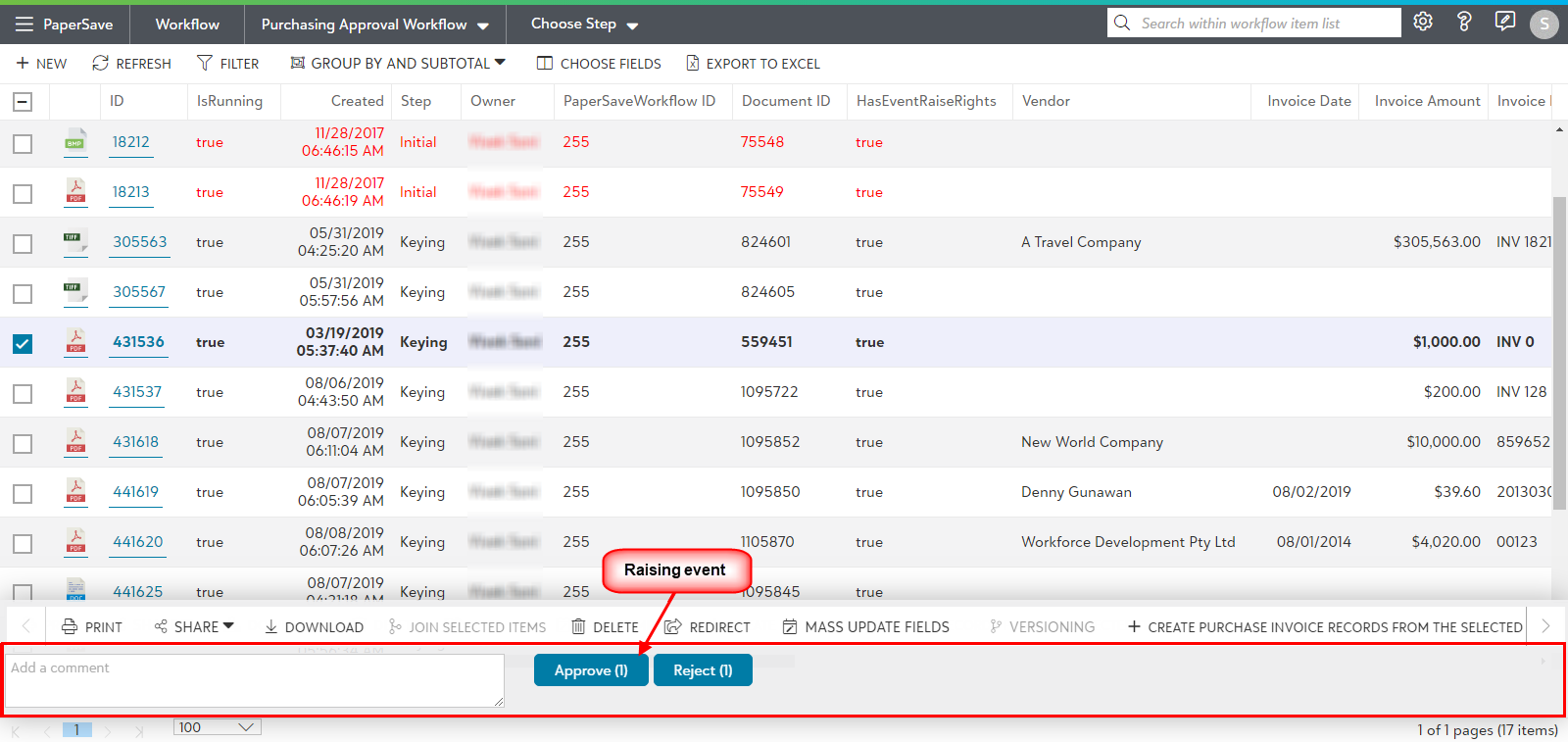
Steps for Raising a Workflow Event
Workflow event panel will be raised in the Workflow item list if any of the below conditions are met:
1) If one or more Workflow Items or all the Workflow items are selected which belong to the same Workflow Step , except “Completed” step of the Workflow.
2) If the current user is either:
- Owner of the selected Workflow Items
- Administrator of the current Workflow
- Workflow Super Admin
Note: Total number of Workflow Items selected will be reflected in the caption of Workflow Events button.
WORKFLOW EVENTS
The Workflow events name can be as follows:
- Approve: To approve the Workflow item.
- Reject: To reject the Workflow item.
- CustomEventName: PaperSave allows you to create custom events based on your business processes. If a custom event is used, then the CustomEventName will be replaced by actual name of the Custom Event in the slide-up panel.
If you raise any Workflow event for more than one Workflow item, and Workflow fields marked as required for one of the currently selected Workflow items is empty, then it will show a dialog titled “The following required fields are missing on one or more of the selected items. Events can only be raised on items in a Workflow when required fields are filled out".
Note: For multiple items, the Workflow event gets raised for the Workflow items where the required fields are filled and canceled for those where required fields are kept blank .
Upon selecting the Workflow Items for raising events, you can enter a comment at the time of executing the event. The same comment will be added to the Workflow conversation panel.
Warning: If the Workflow event has "Comments required" property set to true in Configure area, then it shall highlight the red border for the comment box with message "Please enter some comment" upon leaving the comment box empty.
Notification for success or failure of Workflow event
- You shall see a pop-up notification for success in the top right corner of the screen upon raising an event successfully for selected Workflow items.
- Similarly, you shall see pop-up notification for failure in the top right corner of the screen upon Workflow event failure.
- It shall display number in the bracket representing the total number of succeeded or failed items upon raising the Workflow event.
When Workflow event is raised successfully for all the selected Workflow items, then a pop-up notification showing the operation success shall be displayed on top right corner of the screen.
Tip: You can assign Workflow events to a particular Workflow step using Workflow designer from within Configuration Area.